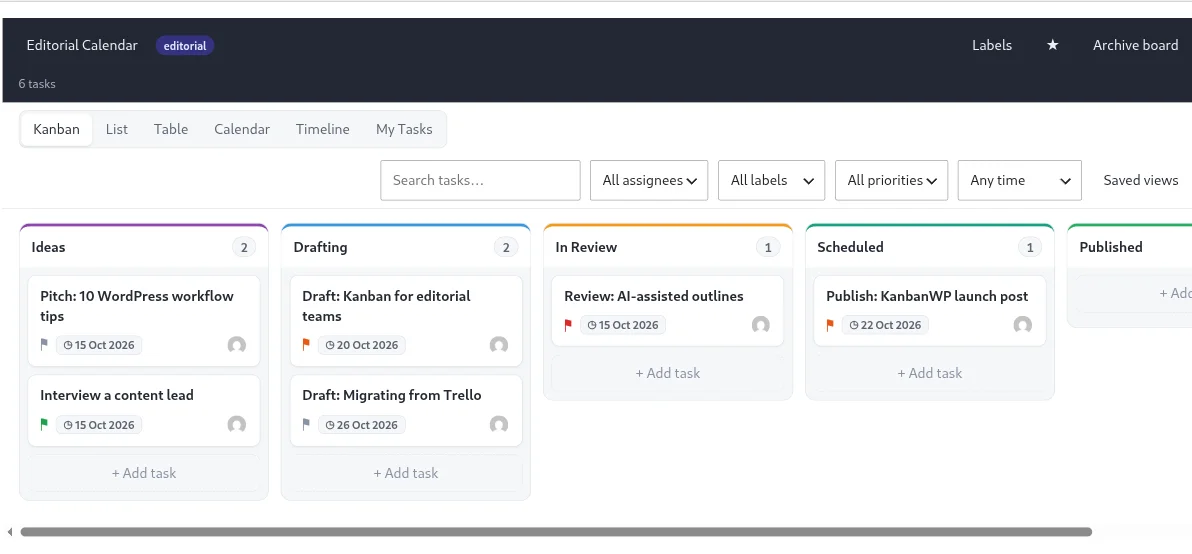
Many agencies and freelancers share progress through screenshots, status emails or a separate tool the client has to learn. A client portal built on a board is simpler: the client opens one page and sees what is planned, in progress and done. KanbanWP does this inside the WordPress site you already run.
How the portal works
- Embed the board. Put
[kanbanwp_board id="12"]on a page, or add the KanbanWP block. See embedding boards. - Add the client as a member. The client needs a WordPress user account and access to the board. See permissions and roles.
- Share the page. Logged-in clients see the board. Logged-out visitors see a login prompt, and logged-in people without access see an access message.
The full setup, including the known issue about assigning the client role in version 1.0.0, is in the client portal documentation.
Keep private work private
Mark a task Internal only, or a comment as internal, and clients never see it. You can keep your own notes on the same card the client follows. See comments and internal notes.
Sharing without an account
For a stakeholder with no login, create a public link: a read-only snapshot reached through a secret token you can revoke. It leaves out internal tasks and comments and shows display names, never emails.
A client board setup that works
Start from the Client template: Backlog, In Progress, In Review, Approved, Done, with labels Feedback, Revision and Approved. See all kanban board templates. Put a WIP limit on In Review so feedback does not pile up, as explained in kanban for project management.
Add AI to client reporting
KanbanWP’s AI can draft a friendly or professional client update from the board’s data, using your own API key. Review it, then send it. Learn how in AI project management and the AI guide.
Why use a board instead of another portal plugin
If you search for a WordPress client portal plugin you will find tools built for files, invoices and messages. A board is a better fit when the main question is “where is my project?” For comparison with other board tools, see KanbanWP vs Trello.
Download KanbanWP and try it on one client project.
Frequently asked questions
Can I use KanbanWP as a client portal plugin for WordPress?
Yes. Embed a board on a front-end page with a shortcode or block, add clients as members and mark internal tasks and comments so clients never see them.
Do clients need a WordPress account?
For the embedded portal, yes: they must be logged in and have access to the board. For people without an account, you can create a read-only public link that you can revoke.
Can clients edit tasks?
Not with the client role: they can view the board and comment. For people who should only look, the Viewer role also works.
Are there known limits in version 1.0.0?
Yes. The members menu cannot yet assign the client role, so use the Viewer role for look-only access until that is fixed. See the client portal documentation for the current status.