The client portal lets people see a board on a normal page of your site instead of the WordPress admin. Pair it with the client role to share progress without giving clients editing power.
Embed a board on a page
You can place a board in two ways.
- Shortcode: add
[kanbanwp_board id="12"]to a page or post, using your board’s ID. - Block: in the block editor, add the KanbanWP board block and choose the board.
The embedded board opens on the Kanban view, and people can switch to the other views with the tabs above the board. See embedding boards for the full setup.
Who sees what
A visitor must be logged in to WordPress and have access to the board. When someone opens the page:
- A logged-in user with at least view access gets the full board app. If their role can’t edit, the board is read-only for them.
- A logged-out visitor sees a “Please log in to view this board” message with a login link.
- A logged-in user who isn’t a member sees “You do not have access to this board.”
Set up a client
- Make sure the client has a WordPress user account.
- Open the board and use Manage members to add them. See permissions and roles.
- Choose their role. See the known issue below about the client role.
- Send them the page that holds the shortcode or block.
Known issue in version 1.0.0. The members menu offers Admin, Editor, Commenter and Viewer. The client role described on this page exists in the plugin’s permission rules, but the menu cannot assign it yet, and Editor and Commenter are both saved as the Member role. Until this is fixed, use the Viewer role for people who should only look at a board.
What the client role can do
A client can view the board and comment on tasks. They can’t create, edit, move or delete tasks. They never see tasks marked Internal only, or comments marked internal, so you can keep private notes on the same card. See internal-only tasks.
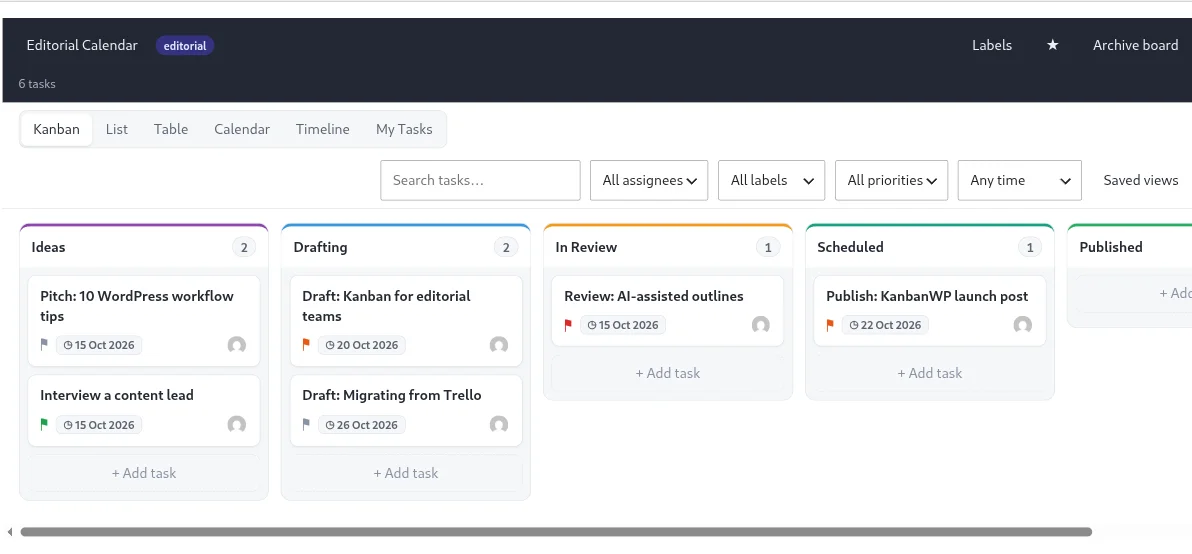
Portal switch
The portal is enabled by default. A setting named portal_enabled controls it, but the plugin shows no checkbox for it in its Settings screens.
Tips
- Use labels and stages that make sense to a client, since they see the same ones.
- Don’t put sensitive details in a non-internal description or comment.
- To share with someone who has no account, use a public link instead.