A stage is one step in your workflow. On the kanban board, each stage is a column, and a task sits in exactly one stage at a time. If you have used other tools, stages are the same idea as columns, statuses or lists. KanbanWP uses the word “stage” everywhere.
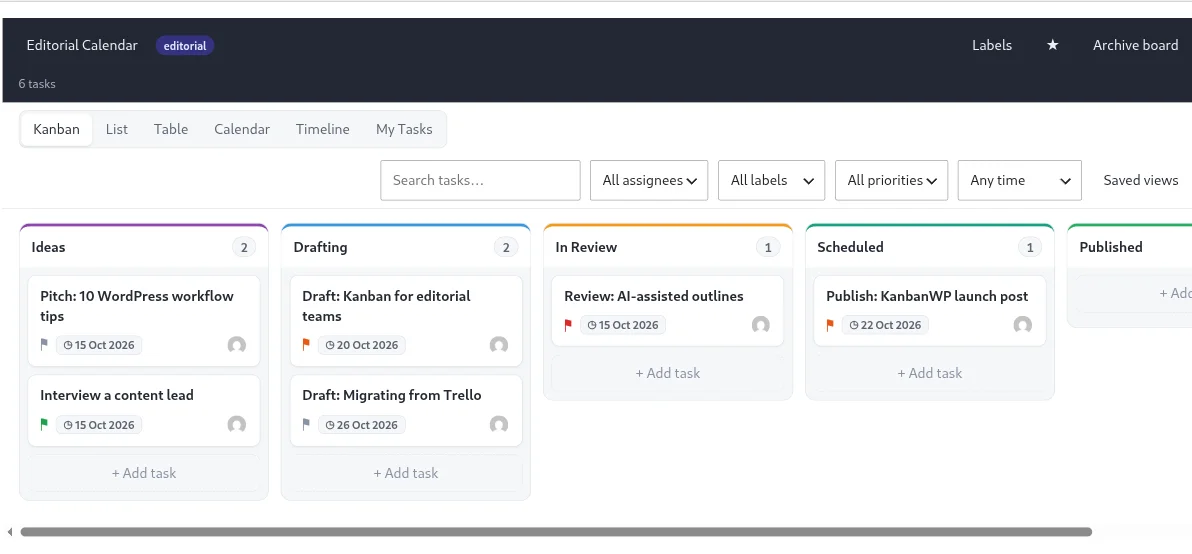
What a stage has
- A name, such as Drafting or In Review.
- A colour, shown as a coloured edge on the stage header and as the bar colour in the Timeline view.
- A WIP limit, an optional cap on how many tasks should be in the stage. 0 means no limit. See WIP limits.
- A position that sets the left to right order on the board.
The header of each stage also shows a count of the tasks in it.
Where stages come from
When you create a board you pick a template, and the template creates the stages for you. Editorial gives you Ideas through Published, Sales gives you Lead through Lost, and so on. A duplicated board gets copies of the original’s stages.
In the current board screen you move tasks between stages, but you do not create, rename or reorder the stages themselves there. To change the stages of an existing board, use the REST API, which has endpoints to create, update, delete and reorder stages on a board. See the REST API reference. Choose your template with care, or duplicate a board that already has the stages you want.
Moving tasks between stages
- Drag a card to another stage, or to a new position in the same stage.
- In the List and Table views, the stage is shown for each task, and you can change it from the task panel.
Each move is recorded in the board’s activity feed.
Stages and views
Stages are most visible in the Kanban view. The List view groups tasks under their stage names, the Table view has a Stage column that you can sort by, and the Timeline view colours bars by stage. The Calendar and My Tasks views focus on dates and assignees instead. See Views.