WIP stands for work in progress. A WIP limit is the most tasks you want in a stage at once. Keeping a cap on busy stages such as In Progress or In Review helps your team finish work before starting more.
What you see on the board
When a stage has a limit above 0, the count beside the stage name shows the tasks in the stage and the limit, for example 3/5. Hover the count to see “WIP limit: 5”.
When the number of tasks goes above the limit:
- the count turns into a warning style, for example
6/5, - an “over WIP limit” badge appears in the stage header.
A stage with no limit shows only the number of tasks.
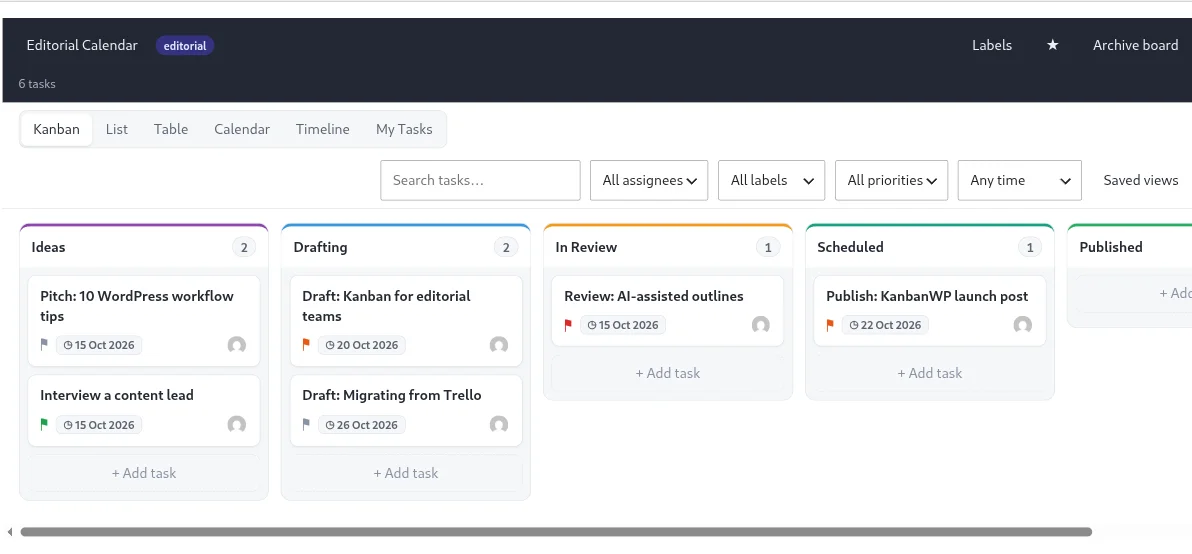
The count includes every task in the stage that is not archived, even when a filter hides some of the cards. This keeps the number honest while you filter.
It is a warning, not a lock
KanbanWP does not stop anyone from dropping a card into a full stage. The card moves, and the stage shows the over limit warning. Treat the limit as a team agreement that the board makes visible.
Set a default limit for new boards
Go to KanbanWP > Settings and change Default WIP limit. Any stage created from a template after that starts with this number. The default is 0, meaning no limit. Existing stages keep their current limits.
See General settings.
Set a limit on one stage
The board screen does not have a control for editing a single stage’s limit. To set or change it on an existing board, update the stage’s wip_limit value through the REST API. Creating a stage and updating a stage both accept it. See the REST API.
Duplicating a board keeps each stage’s limit, so you can copy a board with limits you already like.
Picking a limit
- Start with a number close to the number of people who work in that stage.
- Leave the first stage (Backlog, Ideas) and the last (Done, Published) without a limit.
- If a stage is over the limit often, finish or move tasks before pulling in more work.