Select any card to open its detail panel. Fields save as you change them, and a short “Saved.” message confirms it. If you only have view access, the panel is read-only.
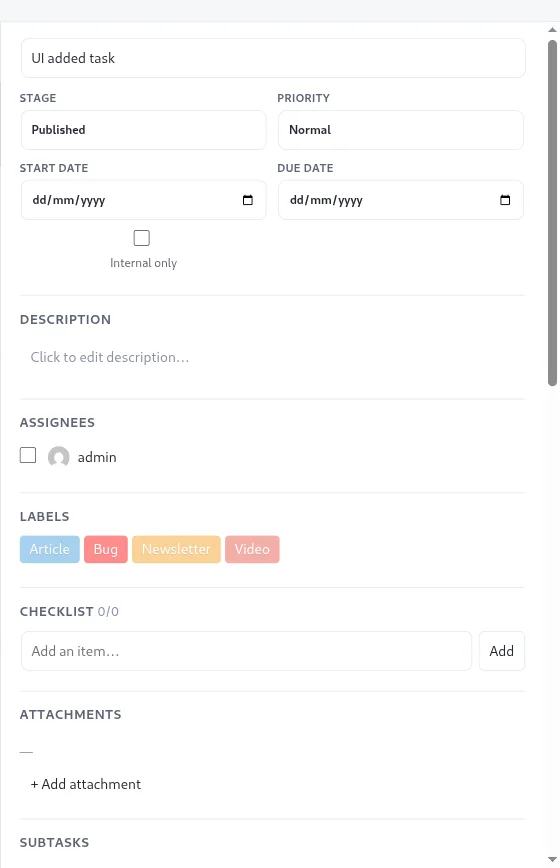
The main fields
- Title: edit it at the top of the panel.
- Stage: changing it moves the task to the end of that stage.
- Priority: low, normal, high or urgent.
- Start date and Due date: pick a date, or clear the field to remove it.
- Swimlane: shown only when swimlanes are turned on for the board. See swimlanes.
- Internal only: hides the task from clients and viewers. It appears only if you are an admin or member. See internal-only tasks.
Description
Select the description area and type. It is stored as rich text.
Assignees and labels
The Assignees section lists the board’s members. Tick the people responsible. If no members are listed, add people from the members button in the board header first. The Labels section shows the board’s labels as chips; select one to toggle it. Create labels first, as described in labels.
Checklist, attachments and subtasks
- Add checklist items and tick them off. See checklists and attachments.
- Add files from the WordPress media library with Add attachment.
- Add child tasks under Subtasks. See subtasks and dependencies.
Other sections
- Custom fields: your own name and value pairs. See custom fields.
- Blocked by: tasks that must finish first.
- Cover image: pick an image from the media library to show on the card.
- Linked post: connect the card to a WordPress post by its post ID.
- Recurring: repeat the task on a schedule. See recurring tasks.
- Comments and Activity: discuss the task and see its history. See comments.
Archive or delete
The header buttons let you watch, archive or delete the task. Archiving is available to anyone who can edit; deleting is shown to board admins. See deleting a task.