This page covers the everyday actions: adding a task, moving it and opening it.
Create a task
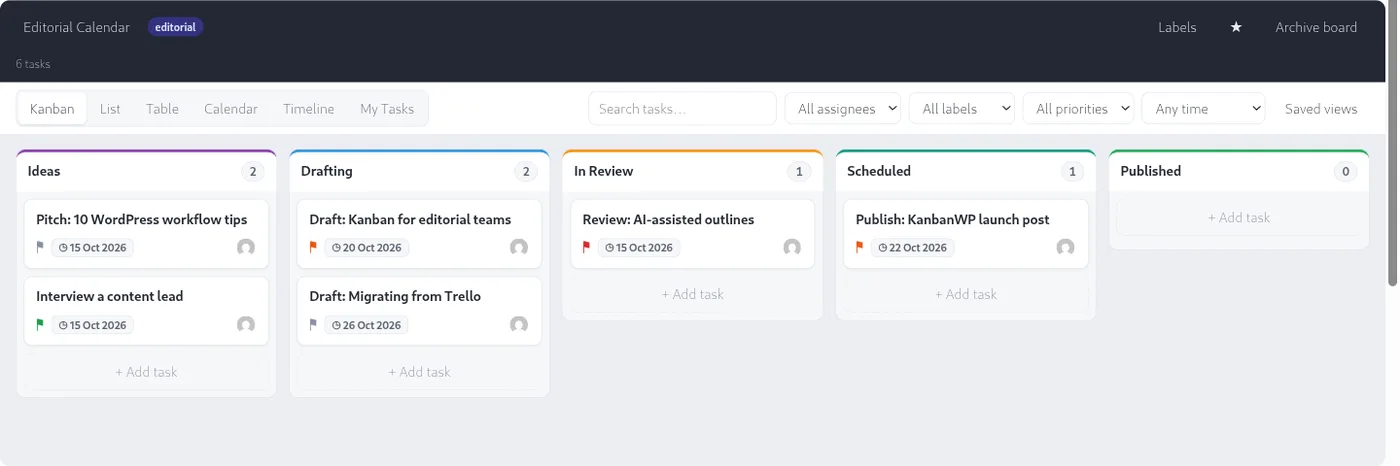
- Open a board in the Kanban view.
- At the bottom of the stage where the task belongs, select Add task.
- Type a title in the Task title box.
- Select Add, or press Enter. Select Cancel to close the box without saving.
The new task is created in that stage and added to the end of it. A title is required. You can fill in everything else later in the detail panel.
You need the admin or member role on the board to create tasks. Viewers and clients can’t.
Move a task
Drag a card to another stage, or to a new position within the same stage. You can also open the task and change Stage in the detail panel. Moving a task notifies the people involved with it (see notifications).
Stages can have a WIP limit. A stage that has more tasks than its limit is marked as over the limit. See WIP limits.
Open a task
Select a card to open the detail panel. Every field on the task is edited there. The panel header shows the task number, an Internal badge when the task is internal only, and buttons to watch, archive or delete the task.
Watch a task
Select Watch in the panel header to follow a task you aren’t assigned to. Watchers receive notifications for that task along with assignees, the person who created it and anyone who has commented.
Share a link to a task
The panel includes a Shareable link field with a Copy button. The link opens the board with that task already open. People still need access to the board to see it.
Archive a task
Select Archive task in the panel header. An archived task disappears from the board but isn’t deleted. Open it again and select Unarchive task to bring it back. KanbanWP never archives tasks on its own. See deleting a task for permanent removal.
Change how you see tasks
The same tasks can be shown as a board, list, table, calendar, timeline or a My Tasks view. Switch with the tabs above the board. See views.