Large pieces of work are easier to track when they are split up. KanbanWP offers subtasks for breaking work down and a “Blocked by” list for recording order.
Subtasks
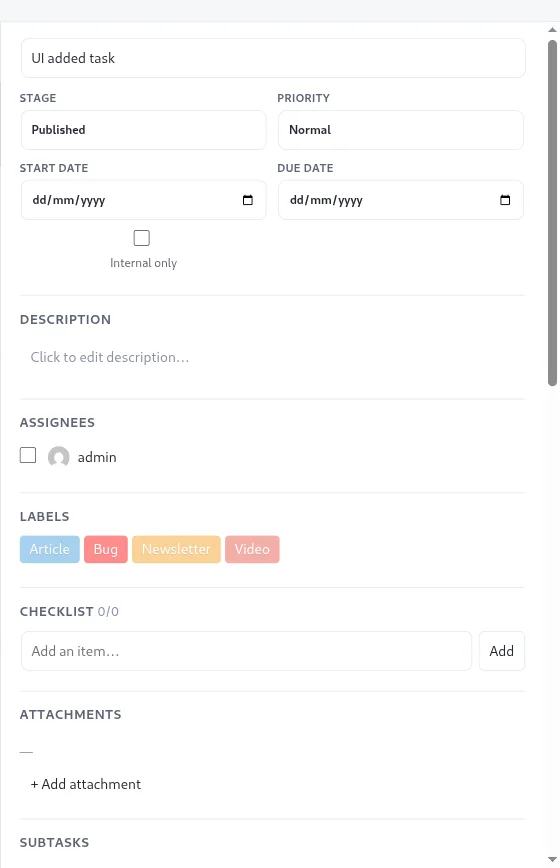
A subtask is a full task whose parent is another task. It has its own title, stage, assignees, due date and comments.
Add a subtask
- Open the parent task.
- Under Subtasks, type a title in the “Add subtask…” box.
- Select Add.
The subtask is created in the same stage as the parent. It appears in the parent’s list, and the parent card shows a subtask count. Select a subtask in the list to open it.
Things to know
- Subtasks are listed under their parent in the panel. Archived subtasks show a box icon.
- Deleting a parent also deletes its subtasks. See deleting a task.
- Completing subtasks doesn’t automatically move the parent. You decide when the parent is done.
If you only need simple steps, a checklist is lighter than subtasks.
Dependencies
Dependencies record that one task is blocked by others.
Mark a task as blocked
- Open the task that is waiting.
- Under Blocked by, enter the number of the blocking task in “Add task ID…”. The number is shown in the panel header of that task as
#plus digits. - Select Add.
The blocking tasks appear as links you can open. Select the × beside one to remove it. The card shows a count of its blockers.
What dependencies do not do
Dependencies are informational. KanbanWP doesn’t stop you moving a blocked task, and it doesn’t move a task when its blocker finishes. Use the list as a visible reminder and review blocked tasks in your regular check-ins.