A board is one workspace for one body of work, such as an editorial calendar, a client project or a sales pipeline. Each board has its own stages, labels, members and tasks. You can create as many as you need.
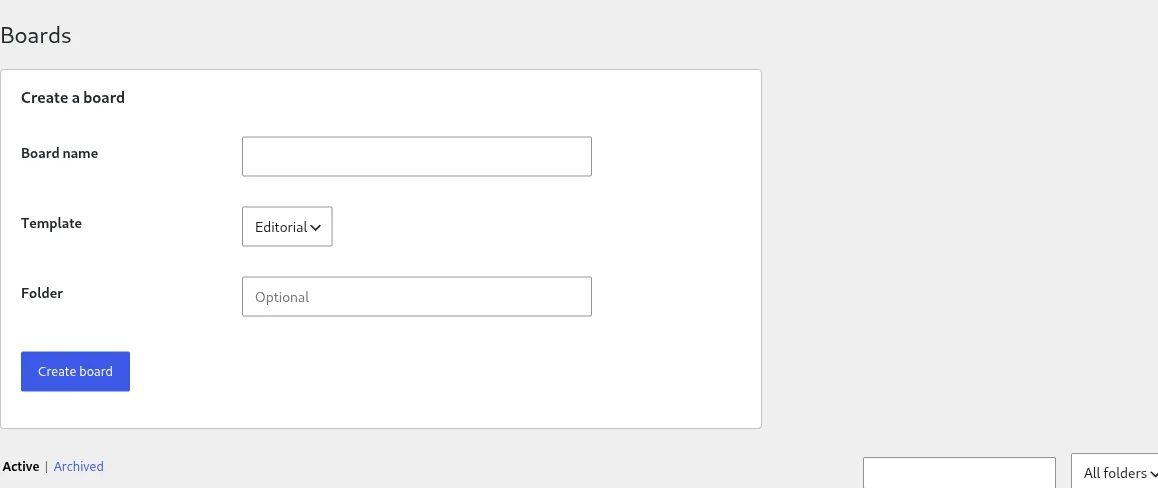
The boards list
KanbanWP > Boards lists your boards, most recently updated first. For each board you see its template, folder, number of tasks, a star if it is a favorite and the last update. Hover a row to reveal its actions: Open, Archive, Duplicate, Favorite and Delete.
Above the list, the Active and Archived links switch between current and archived boards. A search box and a folder dropdown with a Filter button narrow the list.
Creating a board
Use the Create a board form at the top of the screen. You give the board a name, choose a template and optionally enter a folder. See Your first board for the full walkthrough and Templates for what each template sets up.
Whoever creates a board becomes its first admin member.
Working inside a board
Once a board is open you can rename it, manage members, edit labels, mark it as a favorite and archive it from the header. See Understanding the kanban board.
Deleting a board
The Delete row action removes a board and all of its tasks after a confirmation prompt. This cannot be undone. If you only want to hide a board, archive it instead. See Archiving and duplicating.
In this section
- Templates: Editorial, Client, Sales, Bugs and Blank.
- Folders and favorites: keep a long list tidy.
- Archiving and duplicating: retire or clone a board.
- Labels: colour tags for tasks.
- Embedding boards: show a board on a page.