A view is a way of displaying the tasks on a board. All views share the same tasks and the same filters. Switch with the tabs under the board header: Kanban, List, Table, Calendar, Timeline and My Tasks. Archived tasks are not shown in any view.
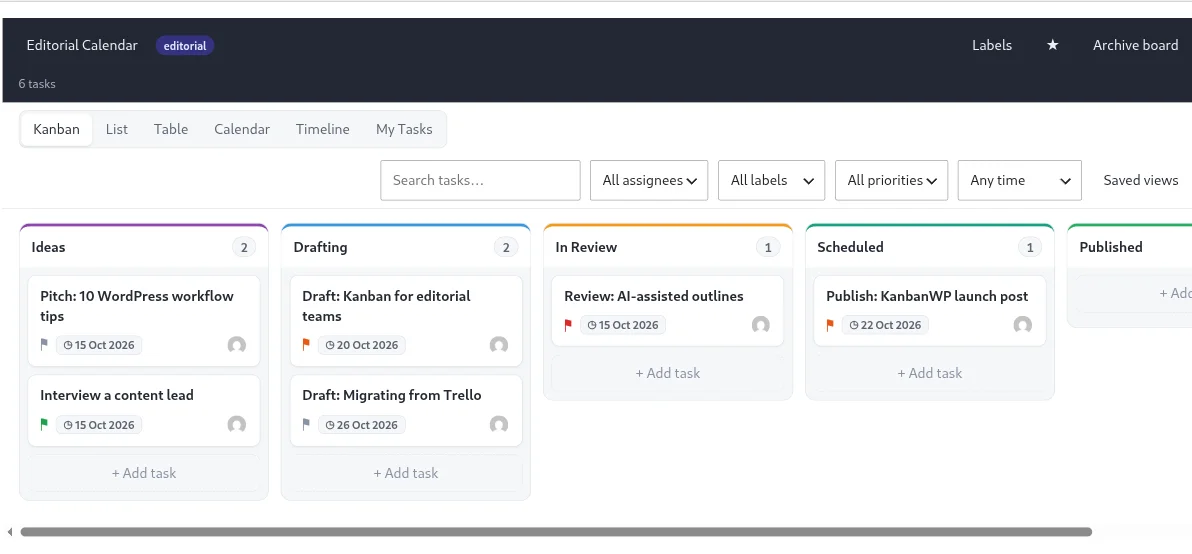
Kanban
The default view. Each stage is a column and each task is a card. Drag cards between stages, use + Add task at the bottom of a column to add one, and click a card to open it. If the board has swimlanes turned on, the columns repeat in rows. See Swimlanes.
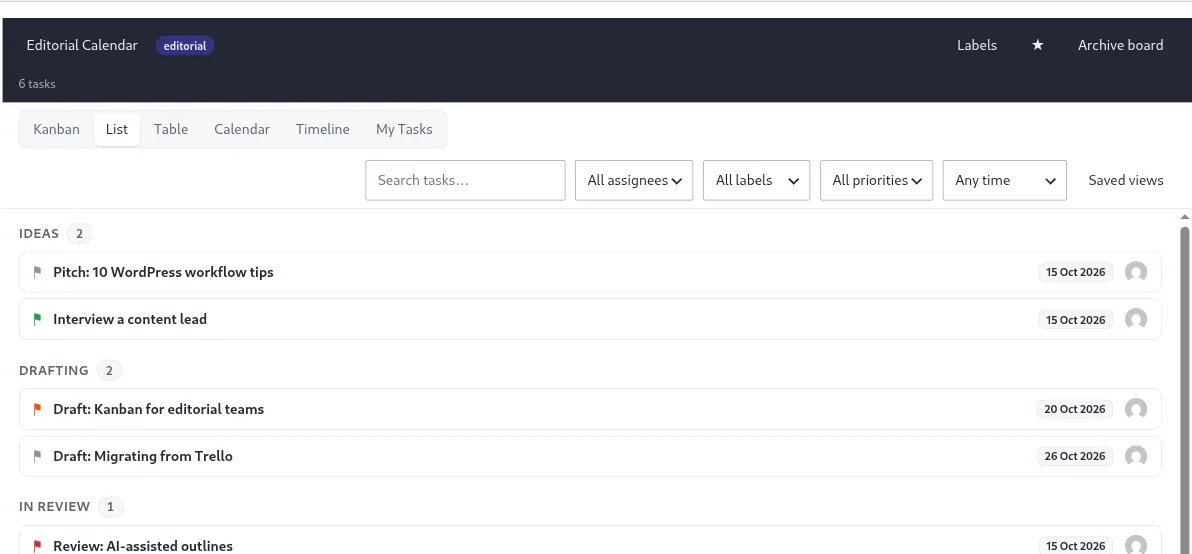
List
Tasks grouped under their stage names, one row per task, with priority, title, due date and assignees. Click a title to rename the task in place, or click the row to open it. When a filter is active, stages with no matching tasks are hidden.
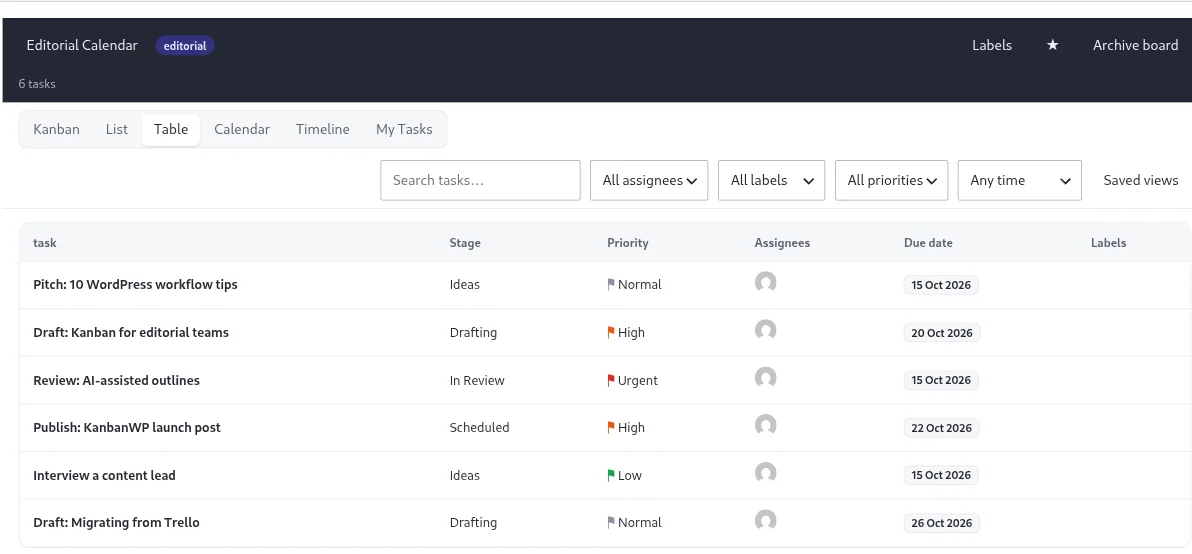
Table
A sortable grid with the columns Task, Stage, Priority, Assignees, Due date and Labels. Click a column heading to sort, and click it again to reverse the order. This is the view for scanning many tasks at once.
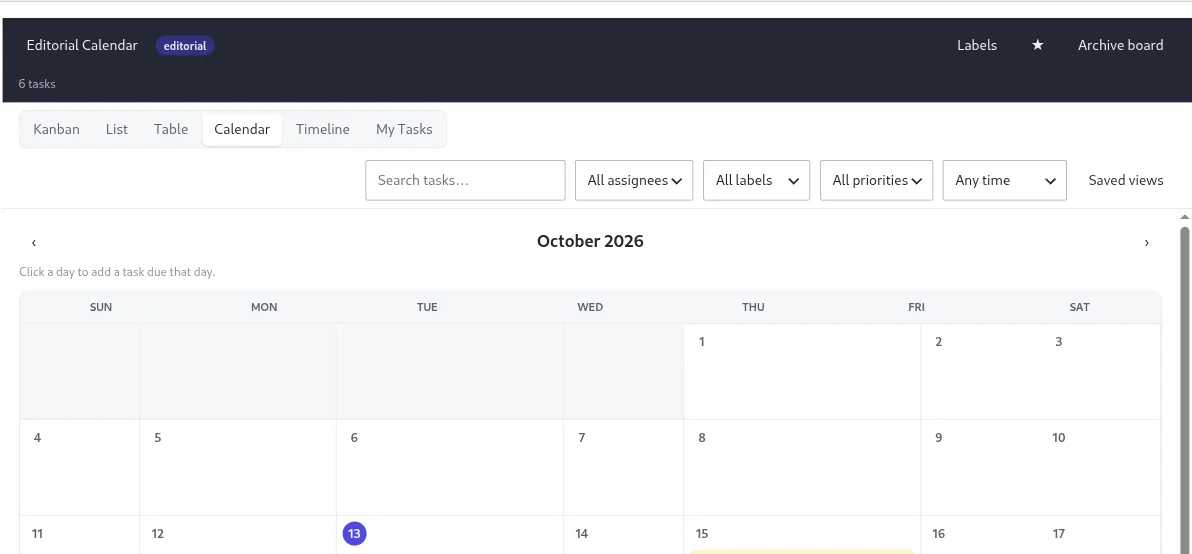
Calendar
A month grid. A task shows on its due date, or across every day from its start date to its due date when both are set. Use the arrow buttons to change month. If you can edit the board, click an empty part of a day to create a task due that day. It is created in the first stage. Tasks with no dates do not appear here.
Timeline
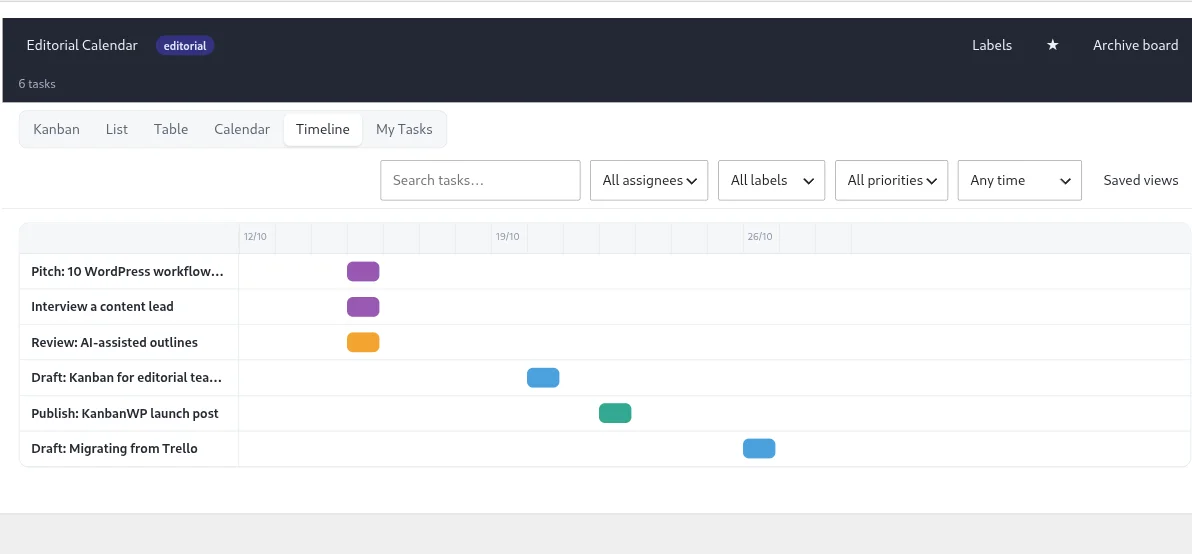
Horizontal bars along a date axis, one row per task, coloured by stage and marked when overdue. It uses start and due dates, so tasks with no dates are left out. Click a bar or a label to open the task.
My Tasks
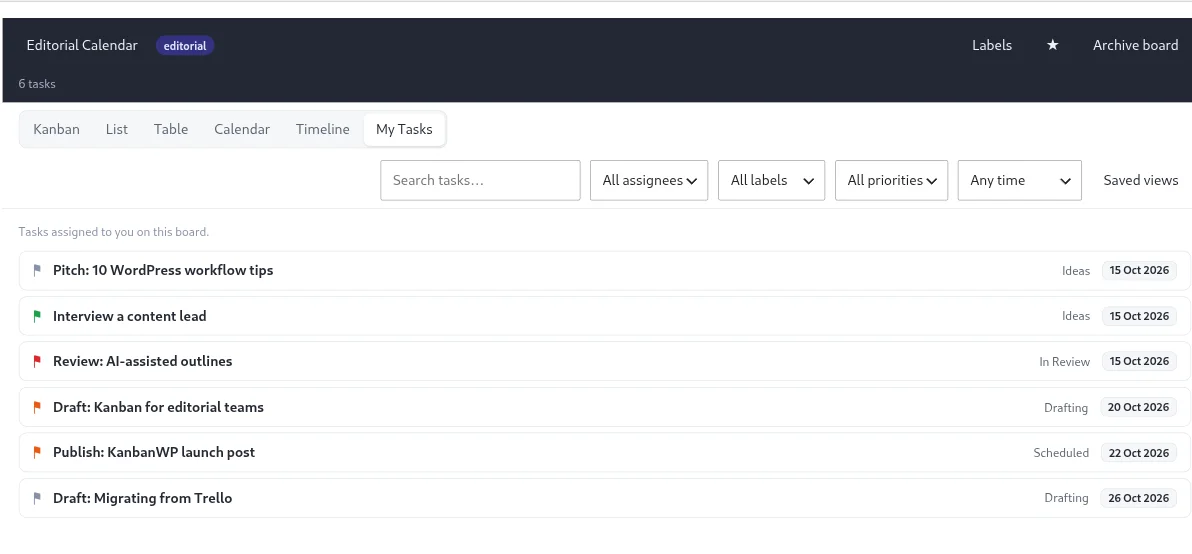
A short list of the tasks assigned to you on this board, sorted by due date. It is useful when you only care about your own work. The Assignee filter also has a My Tasks option if you want the same result in another view.
Filters apply to every view
Search, assignee, label, priority and due date filters narrow whichever view you are in. The count in the header shows how many tasks match. To keep a combination, use Saved views.