The filter bar sits above the board and works in every view. Filters hide cards that don’t match, and they don’t change any task.
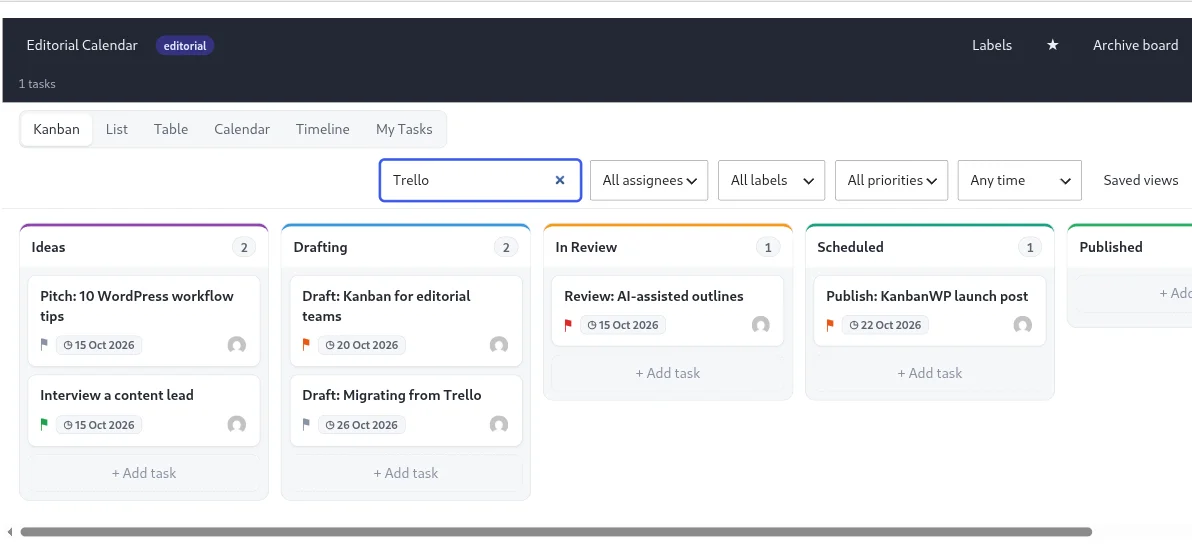
The filters
- Assignee: all assignees, My Tasks (tasks assigned to you), Unassigned, or one specific member.
- Label: all labels, or one label.
- Priority: all priorities, or urgent, high, normal or low.
- Due: any time, Overdue, Due today, or Due this week.
The search box next to them is covered in searching for tasks.
Combine filters
Filters stack. Choosing an assignee and Overdue shows only that person’s overdue tasks. Change any filter back to its “all” or “any time” option to remove it.
When nothing matches, the board shows “No tasks match your filters.” Stage counts in the header reflect what is currently shown.
How “overdue” works
A task counts as overdue when its due date is earlier than today. Tasks with no due date never match the due filters. “Due this week” covers today and the next seven days.
Save a filter as a view
If you reuse a combination, open Saved views, enter a view name and save the current view. Applying the view later restores its filters. Saved views can also be marked as shared, so teammates see them. See saved views.
Filter without opening the board
The My Tasks tab shows only tasks assigned to you on the current board. It is the quickest way to answer “what is on my plate?”.
Tips
- Use the Due filter in the morning to see what needs attention first.
- Filter by label to review one type of work, such as a client or a campaign. See labels.
- Filter by Unassigned during planning to find work nobody owns.