KanbanWP adds visual kanban boards to your WordPress admin. A board is made of stages (the columns, sometimes called statuses), and each stage holds cards that represent tasks. You move a card to the next stage as the work moves forward.
The plugin is free and runs entirely inside your own WordPress site. Your boards, tasks and comments are stored in your WordPress database.
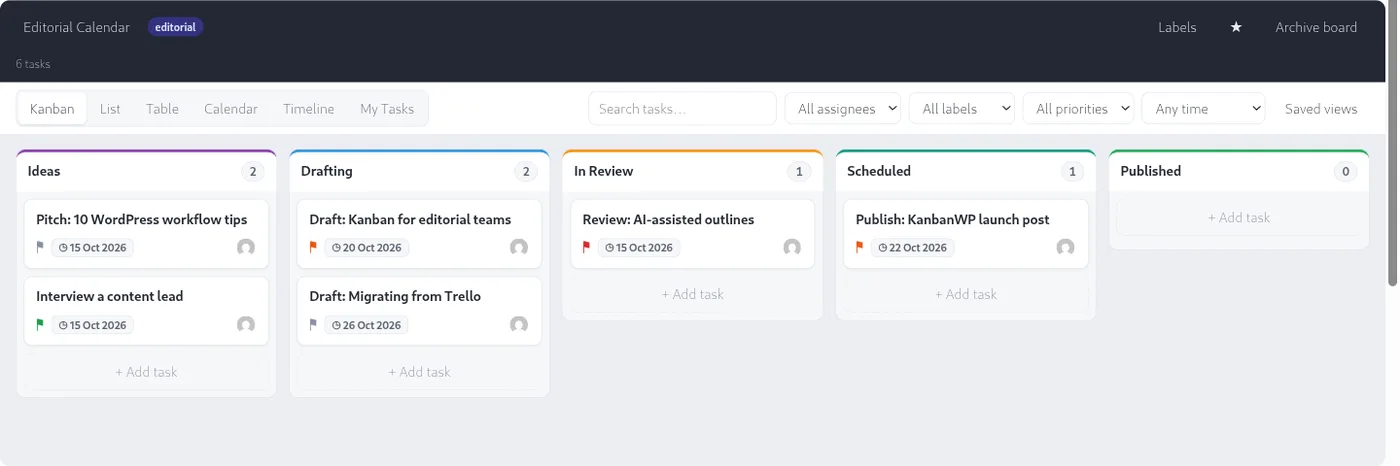
What you can do with it
- Run unlimited boards for content, client work, sales or bugs.
- Start from a template (Editorial, Client, Sales, Bugs or Blank) or build on the Blank one.
- Give tasks priorities, due dates, assignees, labels, checklists, attachments and custom fields.
- Look at the same tasks as a kanban board, a list, a table, a calendar or a timeline.
- Share a board with teammates, or embed it on a page of your site.
Where to start
Work through these pages in order if you are new:
- Installation covers requirements, uploading the plugin and finding the menu.
- Understanding the kanban board explains the toolbar, the views and the filters.
- Your first board walks you through creating a board from a template, adding tasks and inviting a member.
Who can use what
By default, only users with the Administrator role can open the KanbanWP menu. Other people get access to a specific board when you add them as a board member, and they use that board from the front end of your site. See Permissions and roles for the details.