For editorial teams, a card and the post it describes should stay connected. KanbanWP links a task to any WordPress post, page or other post type, and the link works in both directions.
How the link is stored
The link lives in a post meta field called _kanbanwp_task_id on the post, and the task keeps the post ID in its own record. A task links to one post at a time. Linking a task to a new post replaces the earlier link.
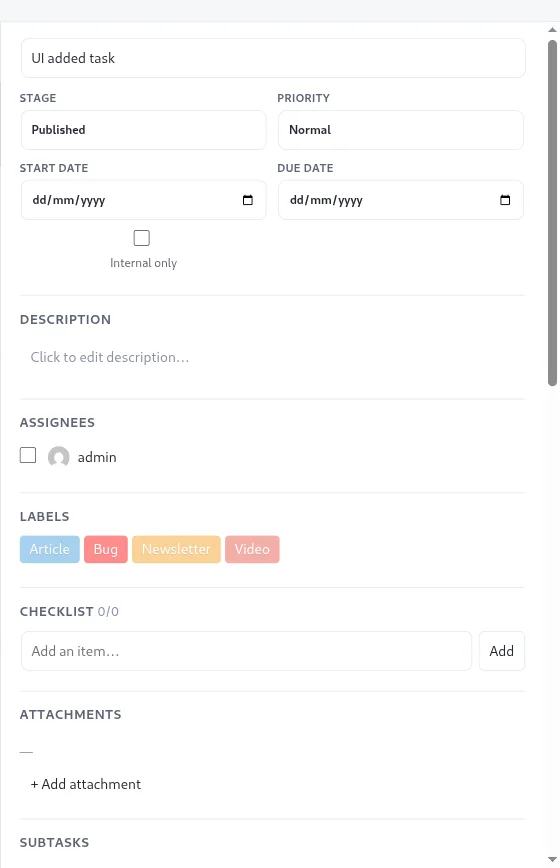
Linked tasks show a small link marker on the card, and the task modal has a Linked post section with the post title as a link to the editor.
Create a task from the block editor
When you edit a post in the block editor, KanbanWP adds a sidebar panel named KanbanWP.
- Open a post or page in the block editor.
- Open the KanbanWP panel from the editor sidebar.
- Choose a Board. Only boards where you can edit are listed.
- Click Create task from post.
The new task is linked to the post and placed in the board’s first stage. Once a post is linked, the panel shows Linked task: with the task title and an Open board link. If the post already has a task, a second one is not created.
Import existing drafts
If you already have drafts waiting, use the Import Drafts screen.
- Go to KanbanWP > Import Drafts. This needs the KanbanWP manage permission.
- Pick the Target board and, if you want, the Target stage. Without a stage, the first stage is used.
- The table lists posts and pages with a status of draft or pending that are not linked yet, with their title, type, status and modified date.
- Click Import as task on the rows you want.
Each import creates one task and links it to the post. Developers can change which post types are listed with the kanbanwp_import_drafts_post_types filter. By default, it is posts and pages.
Keep stages and post status in sync
KanbanWP can mirror stages to post statuses. When a mapping exists for a board, moving a card to a mapped stage updates the linked post’s status, and changing the post’s status moves the card to the matching stage. A built-in guard stops the two from triggering each other in a loop.
The mapping is stored in the board’s settings under the key stage_post_sync, as a list of stage IDs and post statuses (for example, a Published stage mapped to publish). The current version has no settings screen for this mapping, so it is a developer-level option. Stages that are not in the map do nothing.
Be careful with a stage mapped to publish: moving a card there publishes the post.
Developer endpoints
The REST API includes routes to link a post to a task, unlink it, create a draft post from a task, look up the post for a task, look up the task for a post, and create a task from a post. They check that you can edit the board and, for post routes, edit the post. See the REST API.